5. Groups, distribution lists & the address book
Scalio Nexus manages every kind of Entra ID / Exchange group from one place. This chapter covers what each type is for and the options you'll see when you create or edit one.
The interface is in German; the German labels are shown in brackets where helpful.
The group types
| Type | German label | Membership | Created in |
|---|---|---|---|
| Security group | Sicherheitsgruppe | Assigned or dynamic (rule‑based) | Microsoft Graph, or the on‑prem agent for on‑premises groups |
| Mail‑enabled security group | E‑Mail‑aktivierte Sicherheitsgruppe | Assigned | Exchange Online |
| Microsoft 365 group | Microsoft 365‑Gruppe | Assigned or dynamic | Microsoft Graph |
| Distribution list | Verteilerliste | Assigned (static) or dynamic | Exchange Online |
All group types are under the menu item Groups (Gruppen), with one tab each: Security (Sicherheit), Distribution (Verteiler), Microsoft 365 and Teams. Each tab has a search box, a create button and per‑row edit/delete actions. Dynamic entries carry a violet rule badge.
E‑mail address & aliases
Whenever a group is mail‑enabled (mail‑enabled security groups, all distribution lists), the e‑mail address is entered as local part + a domain dropdown. The dropdown lists your tenant's verified domains, with the default domain marked. This is the same picker used everywhere in the app, so you can't accidentally type an unverified domain.
You can add any number of alias addresses (proxy addresses) with the + Add alias (Alias hinzufügen) button — each alias also uses the domain dropdown.
Address availability check (alias validation)
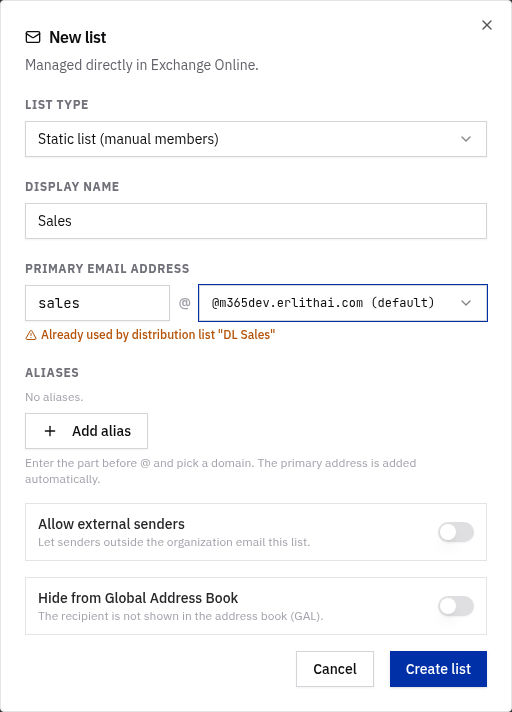
As you type the primary address or any alias, the app checks it against every recipient in the tenant — employees, groups, distribution lists, dynamic distribution lists and shared mailboxes. If an address is already in use, an amber warning appears under the field naming the recipient that owns it (for example “Already used by employee ‘Adele Vance’.”). You can't save while a duplicate exists, which prevents the Exchange error you'd otherwise hit on submit. When you edit an existing recipient, its own addresses are ignored so they never flag as a conflict.
Distribution lists — one wizard, two kinds
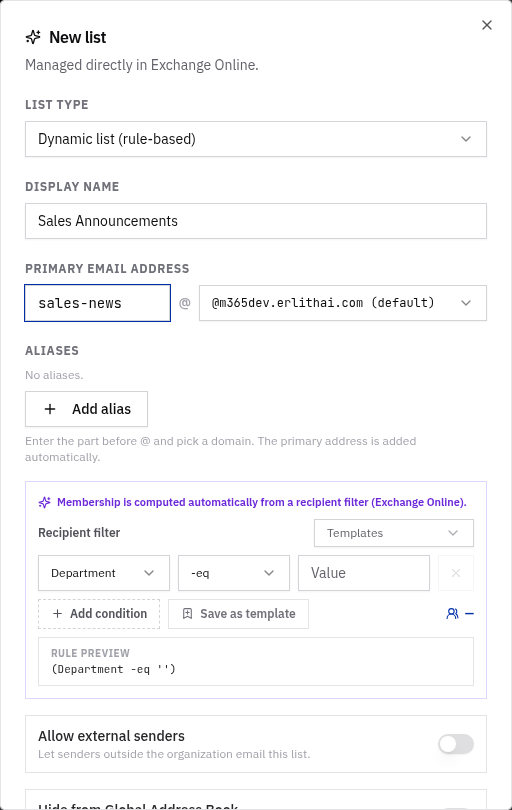
The New list (Neue Liste) button opens a single wizard with a List type selector (Listentyp):
- Static list (Statische Liste) — you add members manually.
- Dynamic list (Dynamische Liste) — membership is driven by a rule you build in the rule
editor (e.g.
Department -eq 'Sales'). A live preview estimates how many recipients match.
There is no separate button for dynamic lists — pick the type in the wizard. Editing an existing dynamic list reopens the same wizard, pre‑set to Dynamic.
Microsoft 365 groups
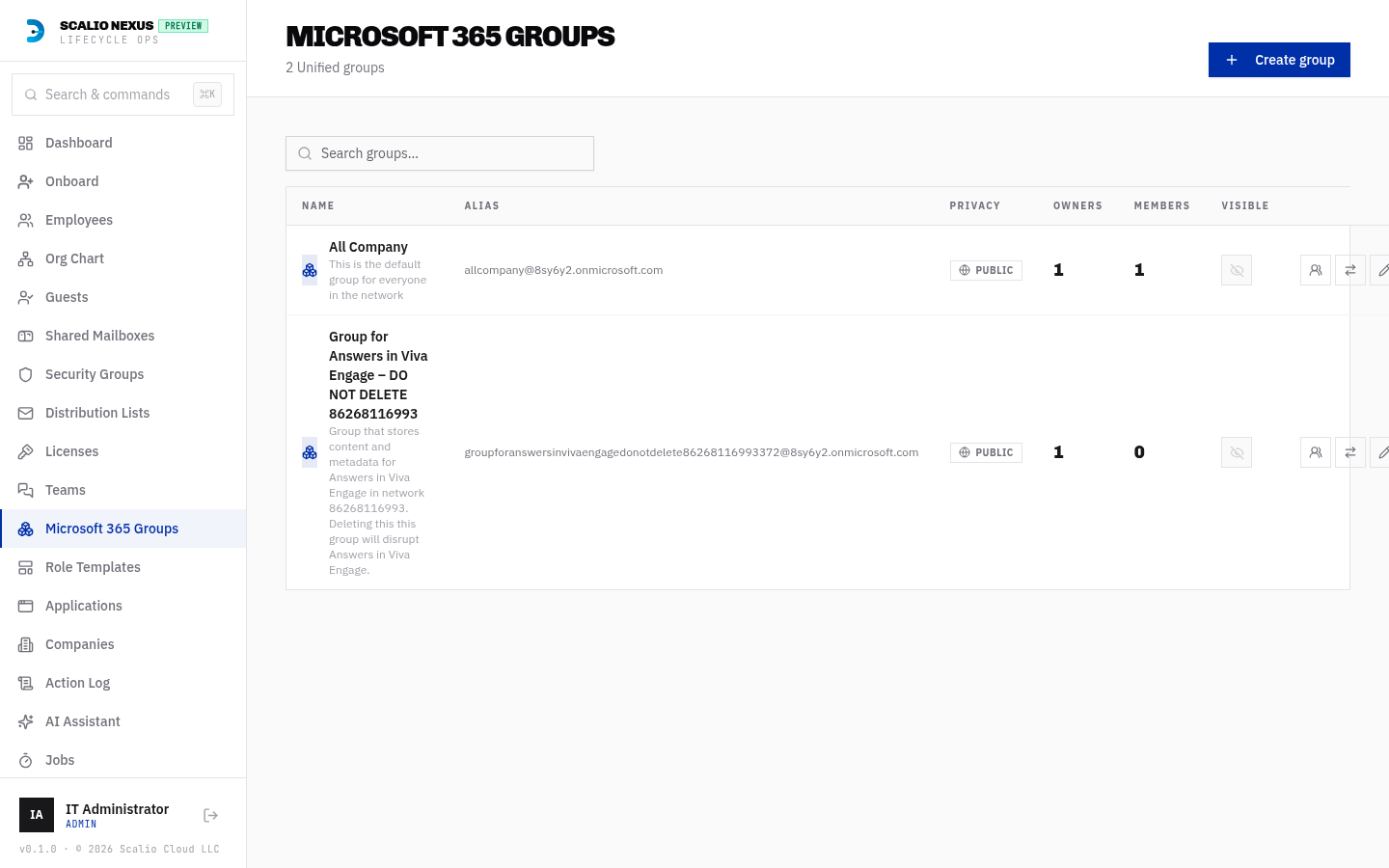
The M365 Groups page shows each group's alias with its domain (e.g. sales@contoso.com) and a
Visible / Hidden toggle so admins can hide internal groups from the console lists without deleting
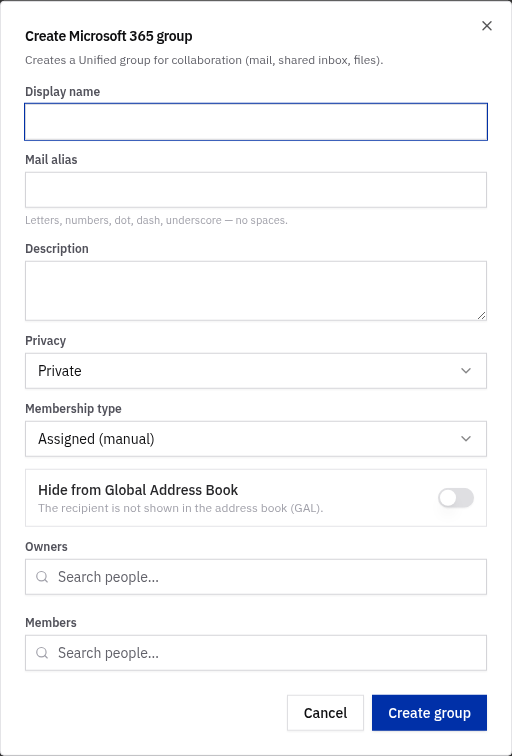
them. The create/edit dialog supports assigned or dynamic membership.
Hide from the Global Address Book (GAL)
Microsoft 365 groups, mail‑enabled security groups, all distribution lists, shared mailboxes and
employees have a Hide from Global Address Book (Aus dem globalen Adressbuch ausblenden)
switch. It is off by default. When on, the recipient is hidden from the Outlook address book
(HiddenFromAddressListsEnabled in Exchange Online).
For employees you can set it during onboarding and change it any time from the Employee details page (see Common tasks).
Requires Exchange Online
GAL suppression is applied through Exchange Online. It takes effect on tenants where Exchange Online is connected; the flag is always saved by the console even if the mailbox isn't ready yet.
Dynamic (rule‑based) membership
Dynamic groups and dynamic distribution lists assign members automatically from a rule — you never add or remove people by hand. Because of that:
- In onboarding and employee details, dynamic groups are not shown in the manual pick lists. Instead they appear in a read‑only “Automatic memberships (by rule)” (Automatische Mitgliedschaften (regelbasiert)) preview with an Auto badge and the rule text.
- The person is added or removed automatically by Entra ID / Exchange once their attributes match (or stop matching) the rule.
