9. Notifications (Teams + Email)
Settings → Channels configures how lifecycle events are announced. Both channels work in Self‑Hosted and SaaS.
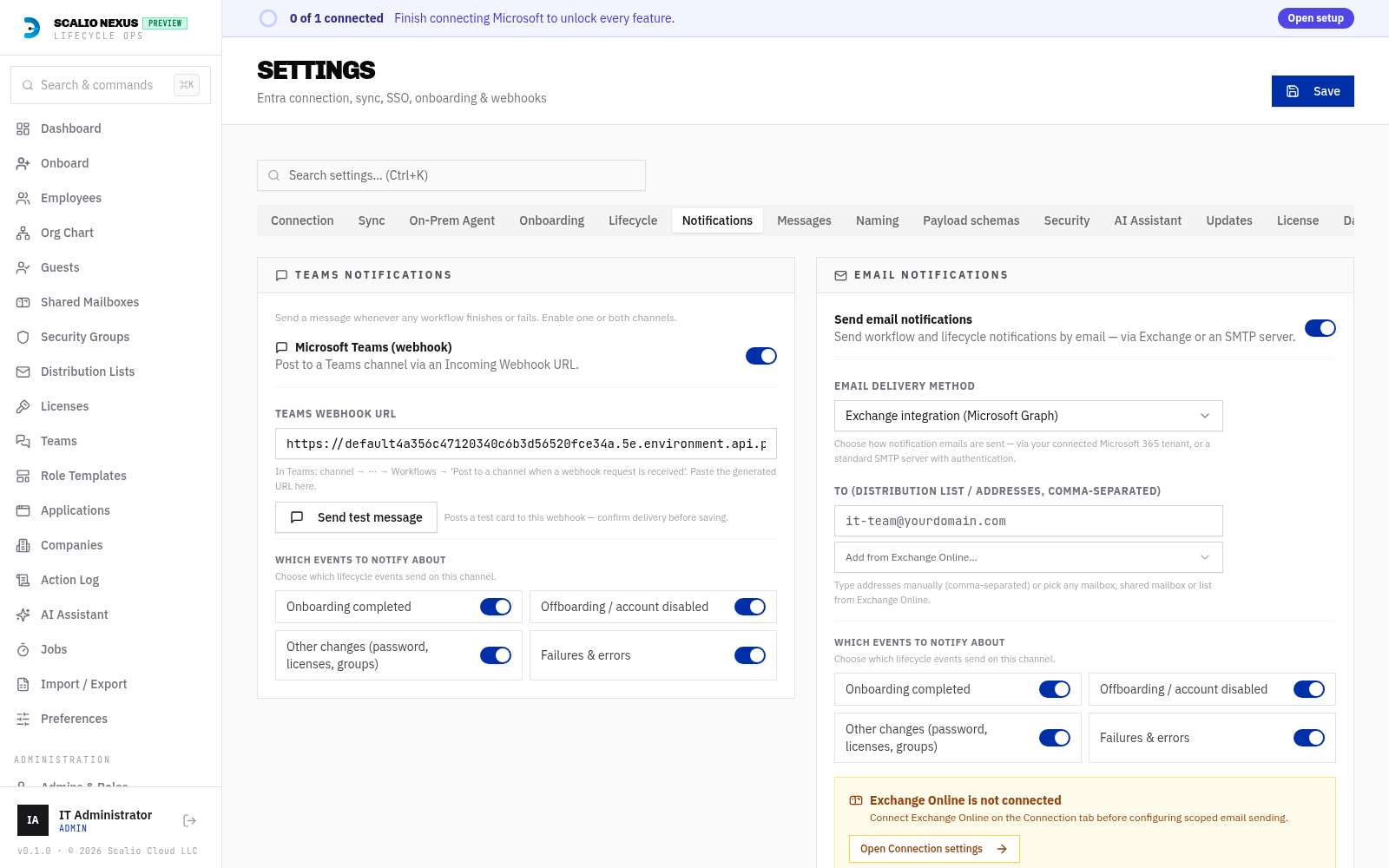
Microsoft Teams
- Paste an Incoming Webhook / Workflow URL.
- Send test message posts a test Adaptive Card so you can confirm delivery before saving. It
accepts the URL you just typed (unsaved) and falls back to the saved one; it validates that the
URL is
https://.
Email
Email can be sent two ways (per the transport setting):
- Microsoft Graph (recommended) — via a scoped Application Access Policy.
- SMTP — classic host/port/credentials.
Scoped send policy (Graph transport)
- A status strip shows Exchange Online connectivity and whether a scoped send policy already exists (and for which group).
- Pick a From mailbox and a scope group, then Create scoped send policy. This limits sending to that one mailbox (least privilege).
- The scope group is pre‑filled with the group chosen in the Setup Wizard, or with an existing policy’s group if one is detected.
- Send test email confirms delivery. Exchange permission diagnostics are tucked behind a collapsible Diagnostics & permissions panel.
- If Exchange Online is not connected, the section shows a friendly pointer to Settings → Microsoft 365.
Recipients (“To”)
Enter addresses manually (comma‑separated) or pick any mailbox / shared mailbox / mail‑enabled list from Exchange Online with the Add from Exchange Online… dropdown (sourced from the synced directory).
Per‑event routing
Each channel (Teams and Email) has an events map so you choose which lifecycle events notify on that channel — not all‑or‑nothing:
| Event | Fires for |
|---|---|
| Onboarding completed | when someone is onboarded |
| Offboarding / account disabled | offboarding, deletion and account‑disable actions |
| Other changes | password resets, licenses, group changes, and similar |
| Failures & errors | any action that errors |
Toggle each event on/off per channel. Tenants configured before this feature default to notifying on everything (backward compatible). Drift / license / digest notifications keep their own toggles.
Operational alerts (digests)
Beyond per‑event routing, Scalio Nexus sends a few scheduled operational alerts on the same Teams / Email channels:
| Alert | When it fires |
|---|---|
| Low‑seat alert | A group used for group‑based licensing drops to/below the low‑seat threshold. Deduped — it re‑alerts only after seats recover and drop again. Test it any time with Settings → Channels → test low‑seat. |
| Shared‑mailbox retention reminder | A configurable number of days (default 3, set in Settings → Lifecycle → “Erinnerung (Tage vorher)”) before a retained shared mailbox is auto‑deleted, so you can extend or reactivate it. Reminds once per mailbox; extending re‑arms it. |
| Upcoming‑leave digest | Daily heads‑up of upcoming leave dates. |
These run in the daily midnight pass and respect your channel toggles.
Welcome‑back email (reentry)
When a leaver is reactivated (reentry), Scalio Nexus can email a summary of the restored access to the returning employee's manager — and, with the “CC the employee” toggle, to the employee as well.
- Turn it on under Settings → Lifecycle → “Willkommen‑zurück‑E‑Mail (Neueintritt)” (plus the CC toggle).
- Edit the message under Settings → Messages → “Willkommen‑zurück‑E‑Mail” — a multi‑language
(English + German) subject + body template with a live preview and a per‑language test send, exactly like
the other message templates. Placeholders:
{displayName},{manager},{upn},{groups},{teams},{licenses},{sharedMailboxes},{summary}.
It sends over the same email channel (Exchange or SMTP) configured above.