3. Setup Wizard
The Setup Wizard (Initial tenant setup) walks an admin through connecting the tenant to Microsoft. It is available in both Self‑Hosted and SaaS mode.
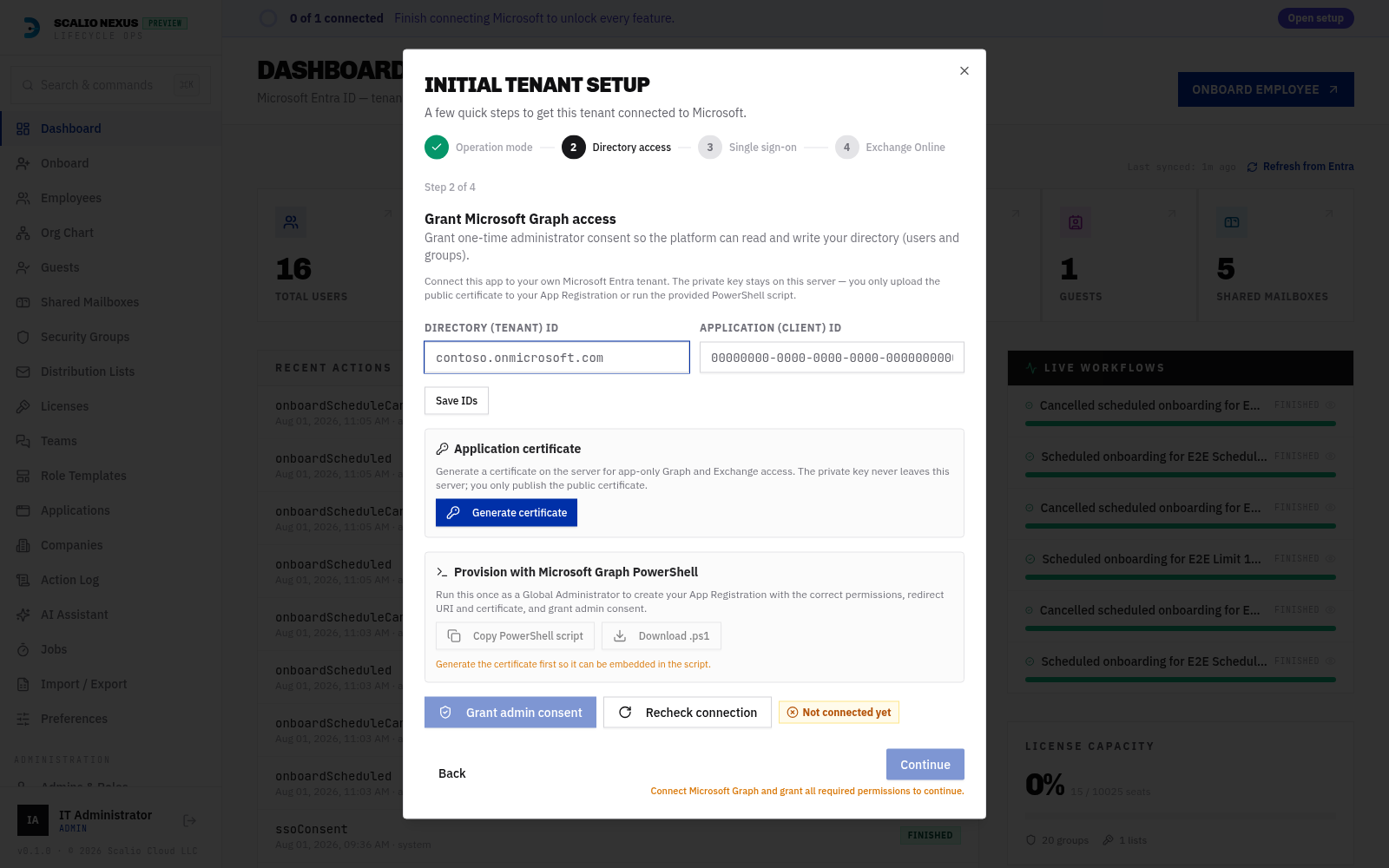
Steps
- Operation mode — choose Hybrid or Cloud‑Only (see Operation mode).
- Directory access (Microsoft Graph) — connect Graph.
- Self‑Hosted: generate a certificate, run the PowerShell bootstrap (copy or download the
.ps1), then grant 1‑click admin consent. See Connection — Assistant vs Manual and Certificates. - SaaS: click Grant admin consent against the vendor app.
- Single sign‑on — configure Entra SSO (optional; can be enabled/disabled later).
- Exchange Online — assign the Exchange Administrator role once so the app can create a scoped send policy, then downgrade to Exchange Recipient Administrator (least privilege).
The Graph step is a hard gate
You cannot advance past the Directory access step until Graph is actually connected:
- Self‑Hosted: the connection test must succeed (the app obtains a token from Microsoft).
- SaaS: admin consent must be granted.
Until then, Continue is disabled and a hint reads “Connect Microsoft Graph and grant all required permissions to continue.” Missing individual permissions are shown as a non‑blocking warning — they do not by themselves prevent continuing once the connection works.
New permissions after an update
If a later release adds a Graph permission (e.g. AuditLog.Read.All for the Stale‑License
report), the console shows a self‑healing “New Microsoft permissions available” banner and a
one‑click Grant admin consent action until it is re‑granted. See
Microsoft connection → Graph application permissions.
Auto‑advance on connect
The moment Graph turns green, the wizard flashes “Microsoft Graph connected — continuing…” and advances to the next step automatically. It fires once per session, so clicking Back to review Graph will not bounce you forward again.
Finishing
Clicking Finish setup marks the wizard complete and hides the setup banner. This works in both modes. If you have not yet assigned the Exchange role you can finish now and complete Exchange Online later — you will be reminded in the setup bar until it is connected.
Starting the wizard again
- Self‑Hosted: open Settings → Microsoft 365 in Assistant mode and click Start Wizard.
- Either mode: the wizard re‑opens automatically while setup is incomplete.